> ## Documentation Index
> Fetch the complete documentation index at: https://docs.comfystream.org/llms.txt
> Use this file to discover all available pages before exploring further.
# Run First Workflow
> Run your first real-time AI workflow with ComfyStream and see it live in Comfystream UI.
After you have successfully installed ComfyStream by following the [installation guide](/technical/get-started/install), you can run your first AI workflow.
## Prerequisites
Download [example workflows](https://github.com/livepeer/comfystream/tree/main/workflows/comfystream) from the ComfyStream GitHub repository to test your setup.
## Accessing ComfyStream UI
When you click the ComfyStream node and select **ComfyStream UI Preview** in ComfyUI, it will open a window that looks similar to the image below:
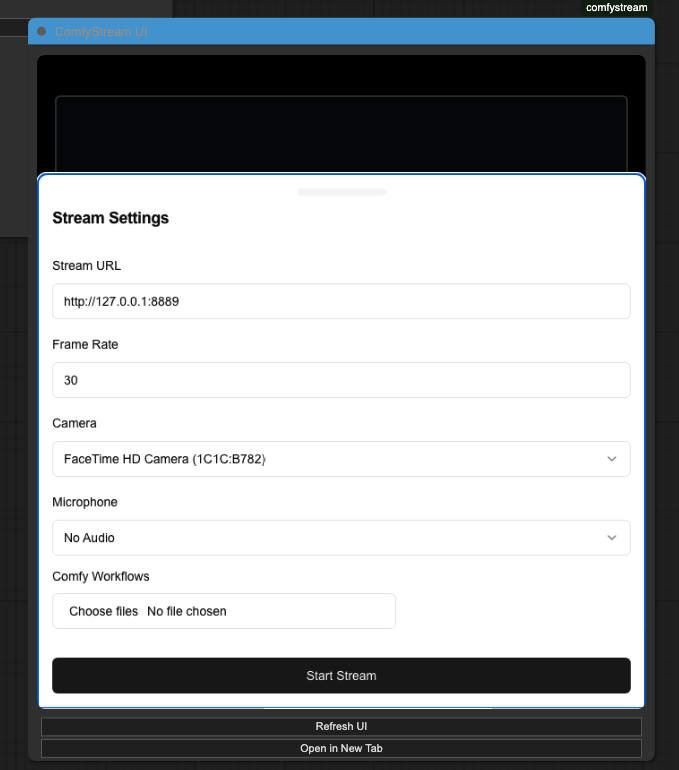 If you prefer to run workflows in a new tab rather than inside ComfyUI, click **Open ComfyStream UI** from the [ComfyStream Menu](/technical/get-started/install#accessing-comfystream).
This will open a similar dialog box in a new browser tab.
Opening the UI will ask for permission to access your video and audio so it
can stream your webcam and microphone. You need to provide access to use
ComfyStream.
## Running Your First Workflow
ComfyStream currently supports only the API workflow format. To export a
workflow in this format, use **Workflow > Export (API)** in ComfyUI. Support
for the native ComfyUI format is under development and will be available in a
future release.
In the ComfyStream UI, click **Choose files** and select one of the
previously downloaded workflows.
Click **Start Stream** to start the workflow. Once the stream starts, you
will see **Starting Stream..** at the bottom of the page. Depending on the
workflow complexity, it may take some time to start. Please wait patiently.
Once the stream starts, you will see the AI effects being applied in
real-time.
If you prefer to run workflows in a new tab rather than inside ComfyUI, click **Open ComfyStream UI** from the [ComfyStream Menu](/technical/get-started/install#accessing-comfystream).
This will open a similar dialog box in a new browser tab.
Opening the UI will ask for permission to access your video and audio so it
can stream your webcam and microphone. You need to provide access to use
ComfyStream.
## Running Your First Workflow
ComfyStream currently supports only the API workflow format. To export a
workflow in this format, use **Workflow > Export (API)** in ComfyUI. Support
for the native ComfyUI format is under development and will be available in a
future release.
In the ComfyStream UI, click **Choose files** and select one of the
previously downloaded workflows.
Click **Start Stream** to start the workflow. Once the stream starts, you
will see **Starting Stream..** at the bottom of the page. Depending on the
workflow complexity, it may take some time to start. Please wait patiently.
Once the stream starts, you will see the AI effects being applied in
real-time.
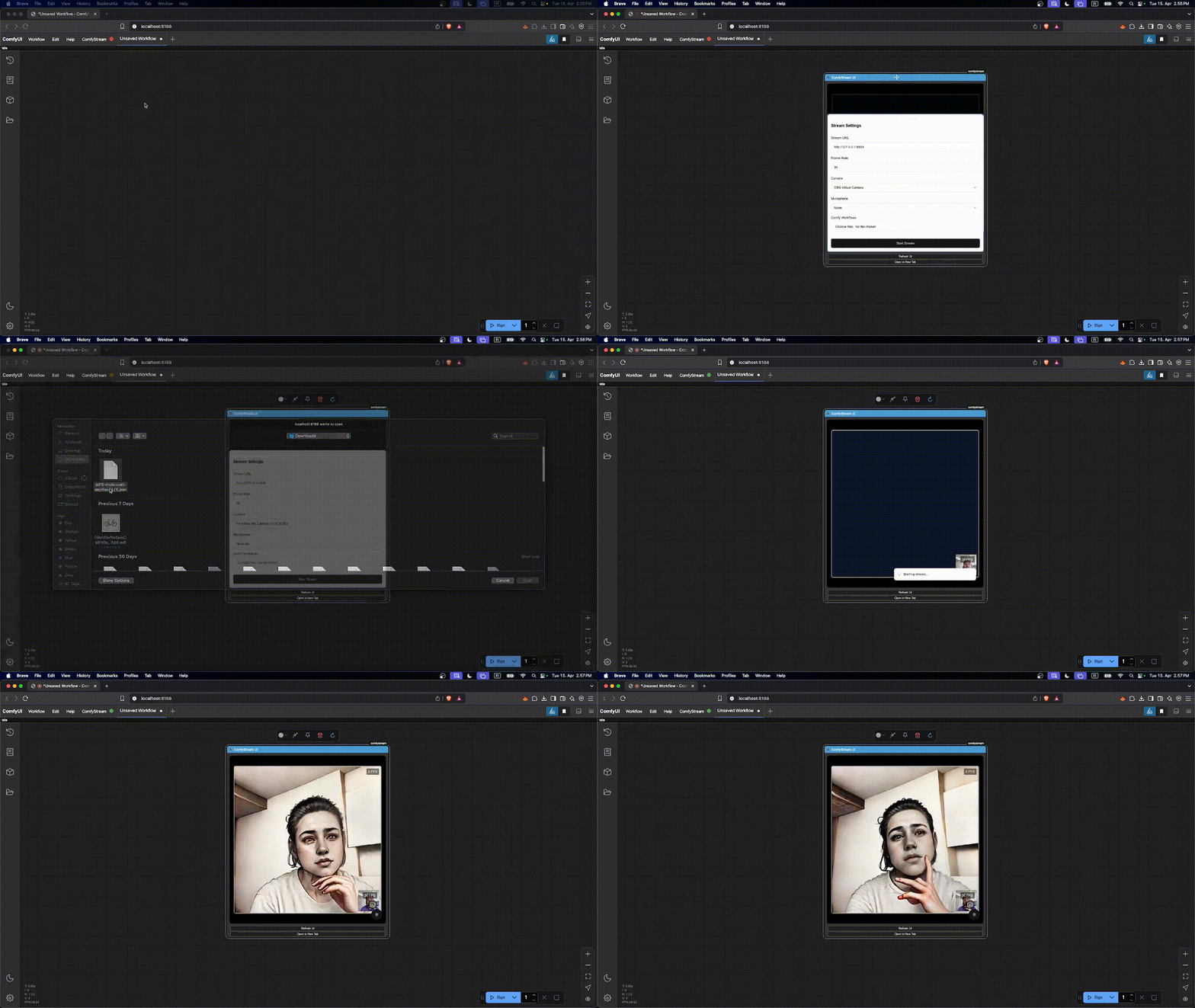 To see the similar preview, copy the
[example-workflow.json](https://github.com/livepeer/comfystream/raw/main/workflows/comfystream/sd15-multi-cnet-depthanything-face-api.json)
to local storage and launch it from comfystream UI as shown above.
## Troubleshooting
For advanced users, you can check the logs in the ComfyStream server to see if
everything is loading properly without any major errors.
To see the similar preview, copy the
[example-workflow.json](https://github.com/livepeer/comfystream/raw/main/workflows/comfystream/sd15-multi-cnet-depthanything-face-api.json)
to local storage and launch it from comfystream UI as shown above.
## Troubleshooting
For advanced users, you can check the logs in the ComfyStream server to see if
everything is loading properly without any major errors.
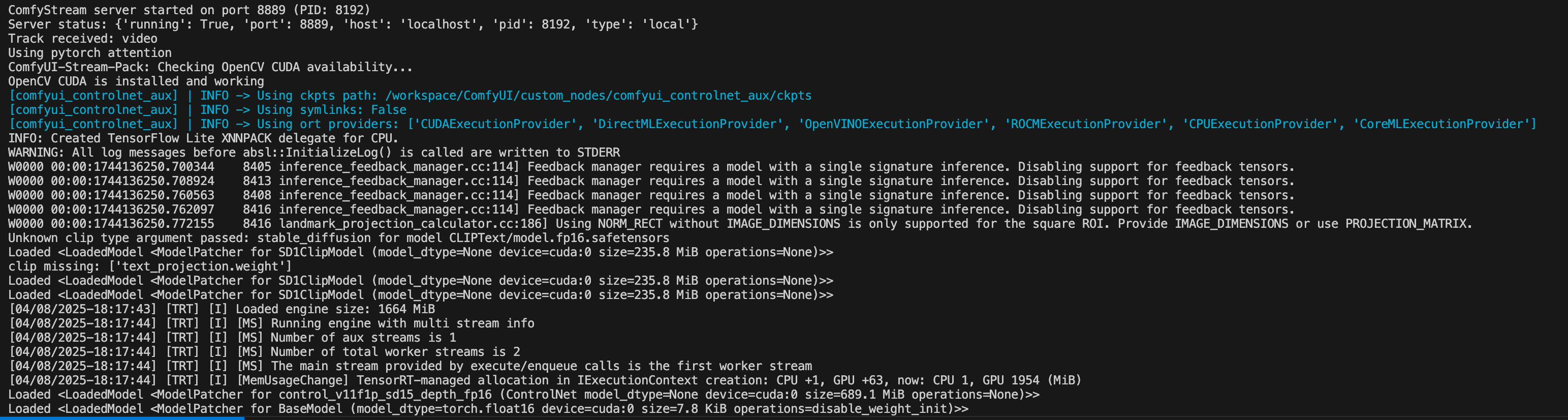 The ComfyStream server logs are in the ComfyUI log window. Open the bottom panel using the **Toggle Bottom Panel** button at the top-right of the interface.
If you encounter the following error when starting a stream on RunPod:
```bash theme={null}
Error proxying offer: Cannot connect to host localhost:8889 ssl:default [Connect call failed ('127.0.0.1', 8889)]
```
Please check the [ComfyStream Server Settings](/technical/get-started/install#accessing-comfystream) to ensure ComfyStream is running on host `0.0.0.0` when using RunPod. The default **Stream URL** in ComfyStream UI (`http://127.0.0.1:8889`) is correct when using the [RunPod template](/technical/get-started/install#run-with-runpod).
The ComfyStream server logs are in the ComfyUI log window. Open the bottom panel using the **Toggle Bottom Panel** button at the top-right of the interface.
If you encounter the following error when starting a stream on RunPod:
```bash theme={null}
Error proxying offer: Cannot connect to host localhost:8889 ssl:default [Connect call failed ('127.0.0.1', 8889)]
```
Please check the [ComfyStream Server Settings](/technical/get-started/install#accessing-comfystream) to ensure ComfyStream is running on host `0.0.0.0` when using RunPod. The default **Stream URL** in ComfyStream UI (`http://127.0.0.1:8889`) is correct when using the [RunPod template](/technical/get-started/install#run-with-runpod).