> ## Documentation Index
> Fetch the complete documentation index at: https://docs.comfystream.org/llms.txt
> Use this file to discover all available pages before exploring further.
# Stream using OBS
> Stream your real-time AI workflows using OBS and browser source from ComfyStream UI.
After setting up ComfyStream and running your first workflow, you can use OBS Studio to capture and broadcast your AI-enhanced streams to your favourite platforms — whether it's YouTube, Twitch, or distributed infrastructure providers like Livepeer.
## Prerequisites
Download and install [OBS Studio](https://obsproject.com/) for your
operating system. OBS (Open Broadcaster Software) is a free and open-source
software for video recording and live streaming.
Before streaming with OBS, you need to have a running ComfyStream workflow.
If you haven't done this yet, follow the [run your first
workflow](/technical/get-started/quickstart#running-your-first-workflow)
guide first.
## Setting Up OBS with ComfyStream
Click the icon in the bottom right corner of the ComfyStream video output to open the stream in a new fullscreen browser tab.
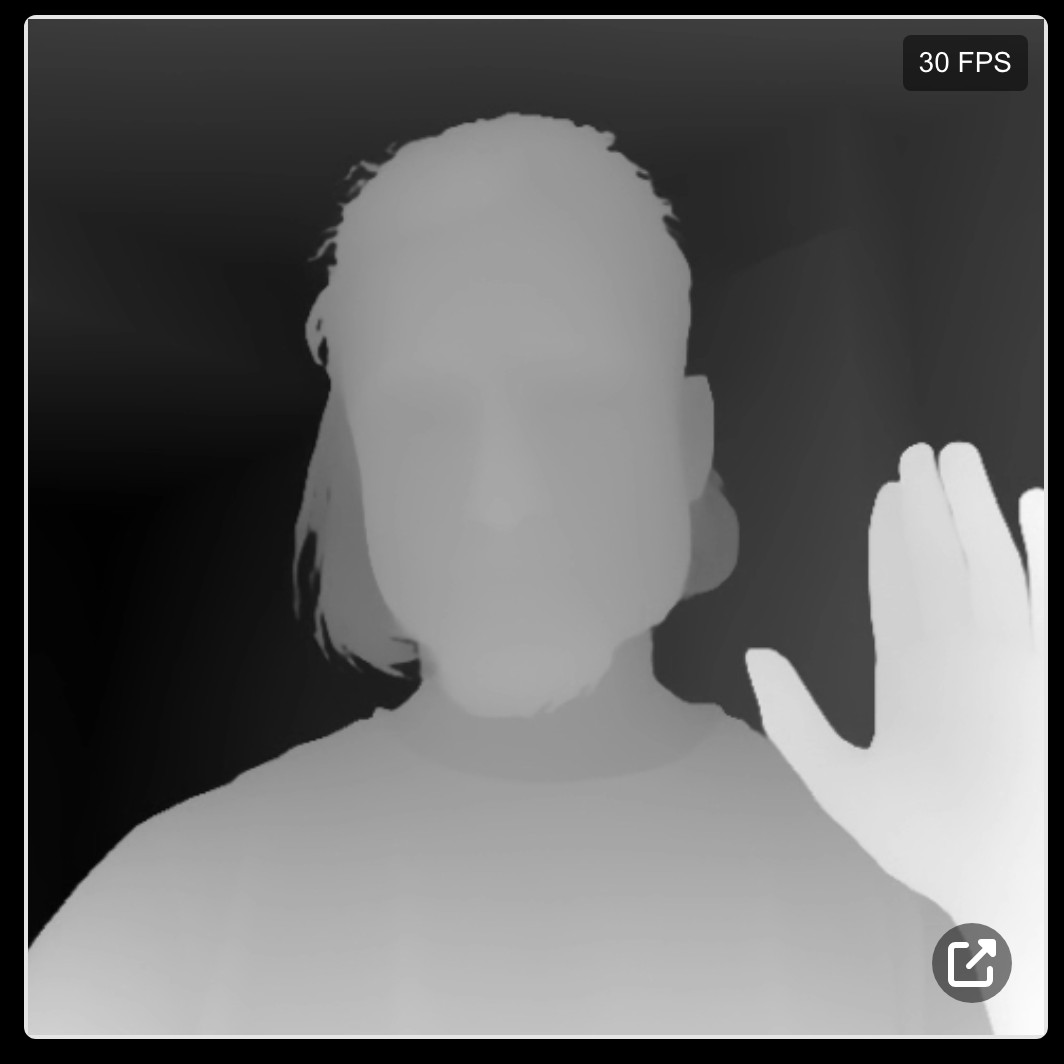 This dedicated view provides a clean video source without any UI elements, perfect for capturing in OBS.
Copy the URL from the new browser tab. You'll need this to add the stream as a source in OBS.
1. Open **OBS Studio**.
2. In the **Sources** panel, click the **+** button.
3. Select **Browser** from the list of source types.
4. Name your source (e.g., "ComfyStream Output") and click **OK**.
5. Paste the URL you copied from the ComfyStream fullscreen tab into the **URL** field.
6. Set the **Width** and **Height** fields to **1024** to match the resolution of the ComfyStream video.
7. Click **OK** to confirm and add the browser source.
You may need to adjust other browser source settings depending on your specific requirements and system performance.
Once added, you can resize and position the ComfyStream browser source within your OBS scene as needed.
You can also add additional sources like webcams, images, or text overlays to enhance your stream.
## Streaming to Platforms
Use the same OBS setup to stream to platforms like:
* YouTube Live
* Twitch
* Facebook Live
* Custom RTMP servers.
Each platform provides a unique **stream key** and **RTMP URL**. Configure these in **OBS Settings →
Stream** to start broadcasting.
Livepeer is a distributed video streaming network offering cost-effective
streaming infrastructure. Follow the [Livepeer
Documentation](https://docs.livepeer.org/developers/guides/stream-via-obs)
for detailed instructions on how to:
1. Create a stream on **Livepeer
Studio**.
2. Configure OBS with your Livepeer **Stream Key** and **RTMP
ingest** URL.
3. Start broadcasting your **ComfyStream AI-enhanced video**.
## Troubleshooting
If you experience performance issues, try reducing the resolution or frame
rate in both ComfyStream and OBS settings. Browser sources can be
resource-intensive, especially with AI-generated content.
This dedicated view provides a clean video source without any UI elements, perfect for capturing in OBS.
Copy the URL from the new browser tab. You'll need this to add the stream as a source in OBS.
1. Open **OBS Studio**.
2. In the **Sources** panel, click the **+** button.
3. Select **Browser** from the list of source types.
4. Name your source (e.g., "ComfyStream Output") and click **OK**.
5. Paste the URL you copied from the ComfyStream fullscreen tab into the **URL** field.
6. Set the **Width** and **Height** fields to **1024** to match the resolution of the ComfyStream video.
7. Click **OK** to confirm and add the browser source.
You may need to adjust other browser source settings depending on your specific requirements and system performance.
Once added, you can resize and position the ComfyStream browser source within your OBS scene as needed.
You can also add additional sources like webcams, images, or text overlays to enhance your stream.
## Streaming to Platforms
Use the same OBS setup to stream to platforms like:
* YouTube Live
* Twitch
* Facebook Live
* Custom RTMP servers.
Each platform provides a unique **stream key** and **RTMP URL**. Configure these in **OBS Settings →
Stream** to start broadcasting.
Livepeer is a distributed video streaming network offering cost-effective
streaming infrastructure. Follow the [Livepeer
Documentation](https://docs.livepeer.org/developers/guides/stream-via-obs)
for detailed instructions on how to:
1. Create a stream on **Livepeer
Studio**.
2. Configure OBS with your Livepeer **Stream Key** and **RTMP
ingest** URL.
3. Start broadcasting your **ComfyStream AI-enhanced video**.
## Troubleshooting
If you experience performance issues, try reducing the resolution or frame
rate in both ComfyStream and OBS settings. Browser sources can be
resource-intensive, especially with AI-generated content.